How to Add HEIC to Google Docs and Slides (and Drive)
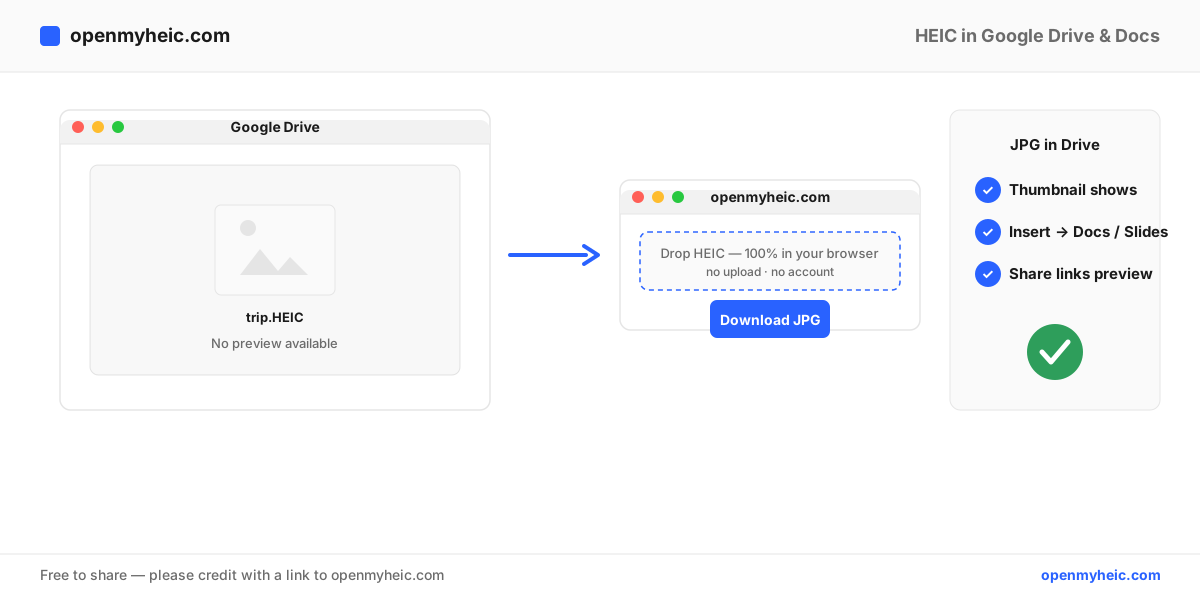
Don't count on Google Docs or Slides accepting a HEIC photo. Google's help page on inserting images doesn't list HEIC, and its developer documentation for the Docs and Slides APIs says inserted images must be PNG, JPEG or GIF. Drive's list of previewable image types leaves HEIC out as well. Google Photos is the exception: Google officially lists HEIC and HEIF there.
The dependable fix takes a minute: convert the HEIC to JPG (or PNG), then insert that file. Because iPhones save photos as HEIC by default, this comes up constantly, and it doesn't depend on guessing what Google's apps will do with a format they don't document.
In a hurry? Convert your HEIC photos to JPG first, then insert those. Free, browser-based, nothing uploaded to us.
Why iPhone photos cause this
HEIC is the default image format for Apple devices, according to Apple, and Apple recommends capturing in HEIF on the iPhones and iPads that support it; it says HEIF uses less storage space than JPEG. That's good for your phone and awkward for everything else: the file ends in .heic, and plenty of services were built around JPEG. If you want the background, what a HEIC file is explains the format in plain English.
What Google's help pages say about HEIC
| Product | What Google documents | What to do |
|---|---|---|
| Google Docs and Slides | The help page on inserting images lists where an image can come from, but no file formats. The Docs and Slides API references say images must be PNG, JPEG or GIF. | Convert to JPG or PNG first |
| Google Drive | Any file type can be stored. The list of the most common types it can preview names JPEG, PNG, GIF, BMP, TIFF and SVG images, not HEIC. | Store the HEIC if you like, but use a JPG when others need to open it |
| Google Photos | Photos that can be backed up include .jpg, .heic, .heif, .png, .webp, .gif, .avif and most RAW files. | HEIC is fine here |
Google doesn't say what happens if you insert a HEIC into a Doc or Slide anyway. If it works for you, you're relying on behavior Google doesn't document; if you get an error or a blank space, the steps below fix it.
How to put a HEIC into Google Docs or Slides
On your computer
- Open the HEIC to JPG converter and drag your
.heicfiles in. Conversion runs locally in your browser, so your photos aren't uploaded anywhere. For a whole folder, use the batch converter. - Download the JPGs.
- Open your document or presentation in Google Docs or Google Slides.
- Click Insert → Image, then choose where the picture comes from: Upload from computer, or Drive & Photos if you uploaded the JPG to Drive first.
- Select the JPG and click Insert or Open.
PNG works too if you need transparency or a lossless copy. Grab one from the HEIC to PNG tool.
On your phone or tablet
In the Docs or Slides app, Google's steps are the same on iPhone, iPad and Android: tap Insert, tap Image, choose where to get your image from, then tap a photo.
If the photos come from an iPhone, you can stop the problem at the source. In Apple's instructions, open Settings, tap Camera, tap Formats, then tap Most Compatible. From then on, new photos and videos use JPEG or H.264. The setting only changes new shots, so photos you already took need converting: see converting HEIC to JPG on iPhone or, on Android, converting HEIC to JPG on Android.
HEIC and Google Drive
Google Drive stores any file type, so uploading a HEIC works. The catch is previews: the file types Google says Drive can preview include JPEG, PNG, GIF, BMP, TIFF and SVG images, and HEIC isn't among them. So don't build a shared folder around HEIC files and expect everyone to see thumbnails. Put JPGs in the folders other people will open.
A HEIC that's already in Drive
Don't want to convert yet, just need to see the photo? Download the file and drop it into the browser-based HEIC viewer. It decodes HEIC on your device and shows the photo, no software needed. To use it in a Doc or Slide, convert it as described above, then upload or insert the JPG.
Google Photos is different
Google Photos is the one Google product here that documents HEIC. Its backup help lists .heic and .heif among the supported photo types, and Live Photos are supported when you use the Google Photos app on an iPhone or iPad. If you want to move photos from Drive into Photos, Google's help says the file type must be .jpg, .heic, .png, .webp, .gif or most RAW files, and the photo must be larger than 256 pixels. Work or school accounts have to download from Drive and upload again.
Photos and Drive are separate products. Google's help says changes you make in Drive apply only to Drive, and changes in Photos only to Photos, so a HEIC that's fine in Photos is still a HEIC in your Drive folder. Convert it if you specifically need it usable in Drive, Docs or Slides.
To take a photo out of Google Photos for a document, go to photos.google.com on your computer, select the photo and click More → Download, which is the route Google's help describes. If the file you get ends in .heic, run it through the HEIC to JPG converter before you insert it.
Which format for Google Workspace?
| Use | Format | Why |
|---|---|---|
| Photos in Docs, Slides, shared folders | JPG | Compact files, and JPEG is on both Drive's preview list and the API list of accepted formats |
| Images needing transparency | PNG | JPG can't hold transparency, and PNG is on the same lists |
| Print-quality masters | PNG | Lossless, so there's no repeated compression |
For everyday Drive and Docs use, JPG is the right pick.
Troubleshooting
- An uploaded JPG shows no preview yet. Refresh the page. If it stays blank, upload that file again.
- Drive for desktop keeps the HEIC. In mirror mode, Google says the files are stored on your computer and in the cloud and that changes on one device appear everywhere. Convert the local files to JPG, put the JPGs in the mirrored folder and they sync up. Delete the HEIC copies when you no longer need them.
- You have hundreds of photos. Use the batch converter instead of converting one at a time, then upload the JPGs in bulk.
- Google Photos shows them but Drive doesn't. Photos documents HEIC and Drive's preview list doesn't include it. Convert if you need the photos in Drive, Docs or Slides.
Frequently asked questions
Can I insert a HEIC into Google Docs?
Google doesn't list HEIC as a supported image format for Docs, so convert to JPG or PNG first, then use Insert → Image.
How do I add a HEIC to Google Slides?
The same way: convert the HEIC to JPG, open the presentation, choose Insert → Image and pick the file. On a phone, tap Insert, then Image.
Why does Google Drive show no preview for my iPhone photos?
iPhones save photos as HEIC by default, and HEIC isn't on Google's list of image types Drive can preview. Convert the photos to JPG, or set the camera to Most Compatible so new photos are JPEG.
Does Google Photos support HEIC?
Yes. Google lists .heic and .heif among the photo file types Google Photos can back up.
Does converting to JPG lose quality?
JPG compresses the image again, so keep your HEIC originals. If you need a lossless copy, convert to PNG instead. For the full comparison, see HEIC vs JPEG.
The bottom line: Google documents HEIC for Google Photos, but not for Docs, Slides or Drive previews, so convert first. Turn your HEIC into JPG (or PNG), insert those, and your photos work in Docs, Slides and shared folders. Want to just peek at one file? Use the HEIC viewer. New to the format? See what a HEIC file is.